
NetWeaver Remote Function Call (RFC)
SAP-NetWeaver-RFC-Bibliothek 7.50
The RFC API (Remote Function Call) allows you to establish an RFC connection to an SAP system from an external system that can communicate with the SAP system as a client or server.

On Windows, version 12.0 of the Microsoft C runtime DLLs is required. If these are not yet installed on your Windows system, you can download them directly from Microsoft (see https://www.microsoft.com/en-US/download/details.aspx?id=40784 )
You can download the necessary DLLs either from the SAP Marketplace or alternatively from our server:
https://downloads.bluetelligence.de/librfc32/NWRFC_32bit.zip
https://downloads.bluetelligence.de/librfc32/NWRFC_64bit.zip
You can use the DLLs in two ways.
Save it in the Windows directory (System32 for 64-bit version, SysWOW64 for 32-bit version)
Save it in an arbitrary location and introduce an environment variable
We recommend storing the file in the Windows directory.
Saving in Windows directory
Ideally, place the downloaded DLL files in the System32 folder of the Windows directory.
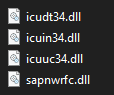
For the 64-bit version, place the four DLLs in the "System32" folder in the Windows directory.
For the 32-bit version, place the four DLLs in the "SysWOW64" folder in the Windows directory.
Add system environment variable
If you are not able to place the files in the System32 folder, you can place the DLLs elsewhere and use them via an environment variable.
Unpack the SAP NetWeaver RFC SDK archive to a directory of your choice.
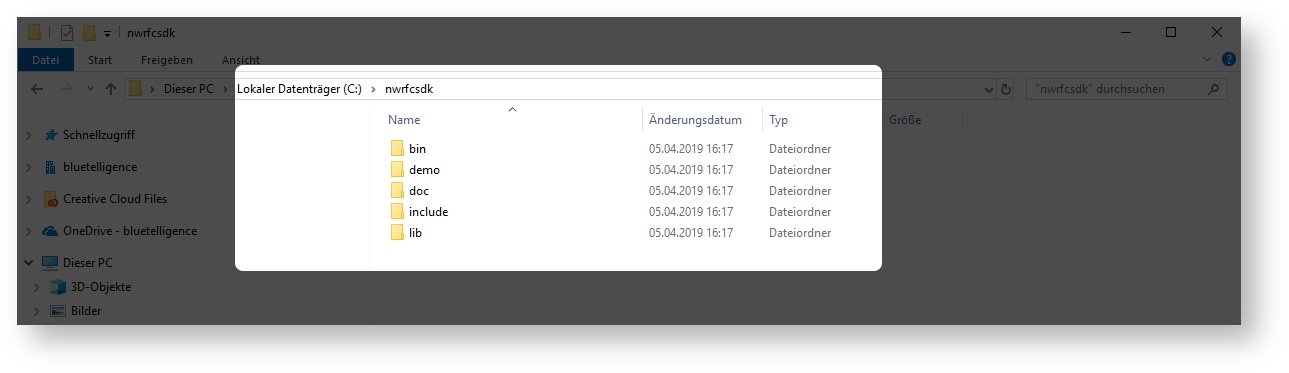
In order for the SAP NetWeaver SDK to be found, the path to the lib directory (or to the directory with the DLLs) must be added to the system environment variable "Path".
Type env into the search bar and hit Enter (The search bar is located on the bottom left side of your screen)
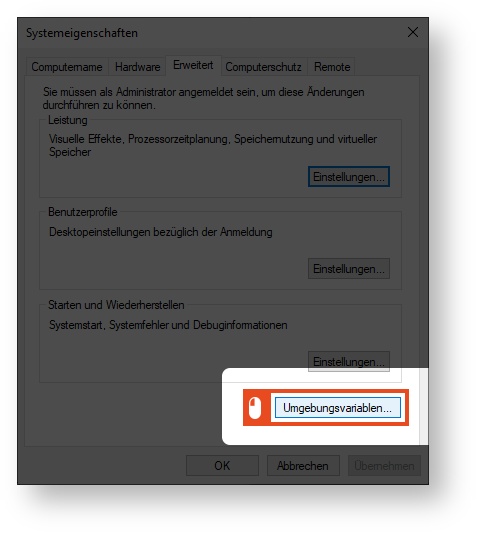
A new window opens. In it, click Environment Variable.
In the new window, click the New button.
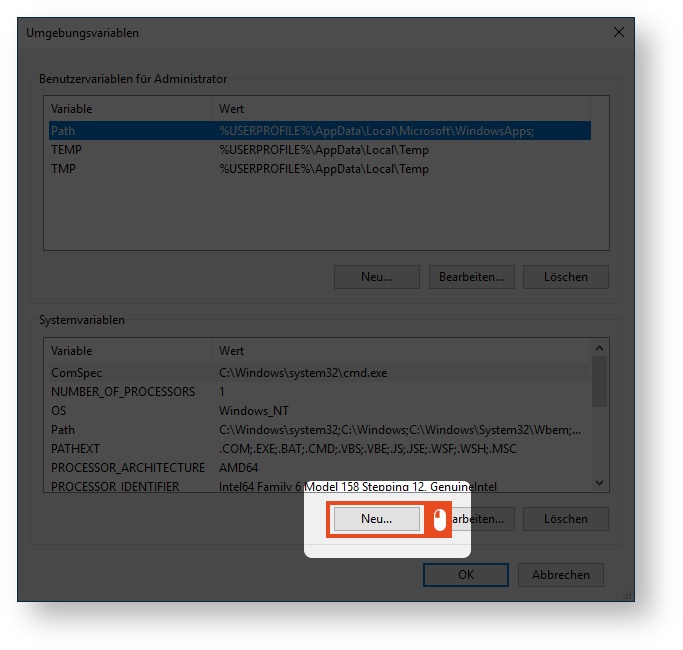
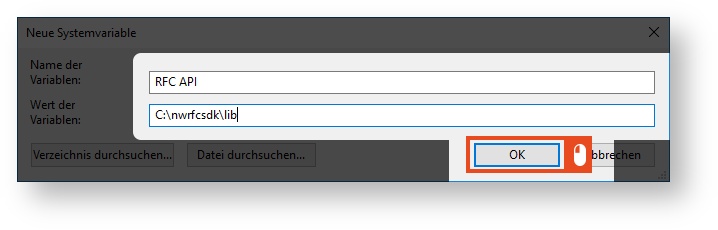
Now add the lib subdirectory of the SDK to the system environment variable and click OK.
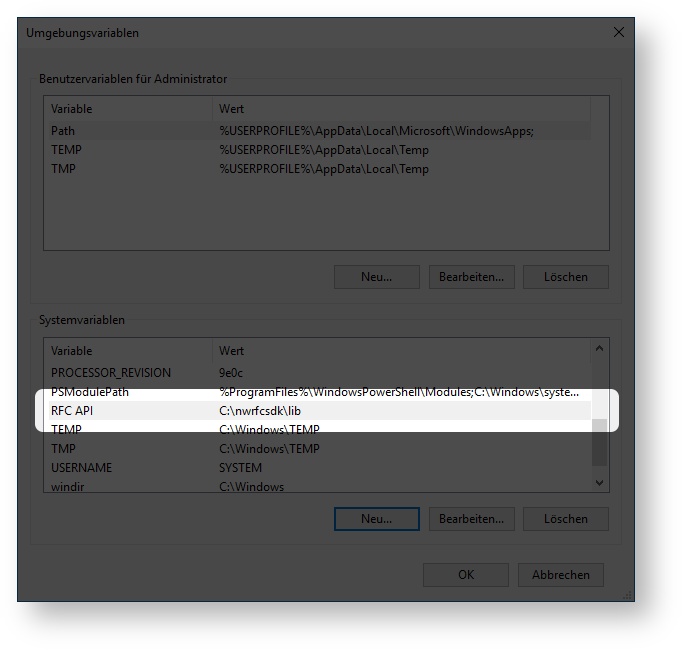
You will find the entry you just created in the overview.
3.1 Optional: Add system environment variable
You can also add the system environment variable via the Windows command prompt. To do this, start the Windows command prompt as administrator and specify the exact path to the SDK.
Example:
CODE
|
When using spaces, you must enclose the path to the directory in quotation marks.
Example:
CODE
|