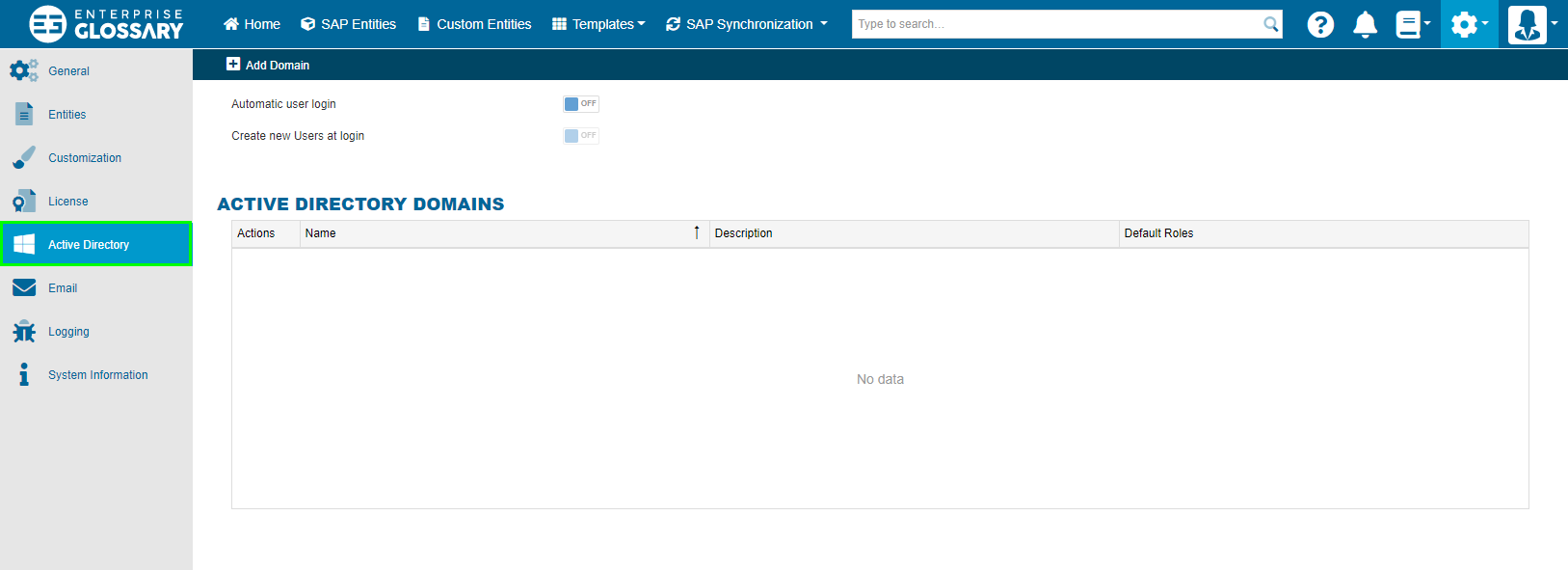
Active Directory
Microsoft Active Directory can be used for single-sign-on. You can import the Users of the Active Directory in the Enterprise Glossary or you can automatically create them at logon.
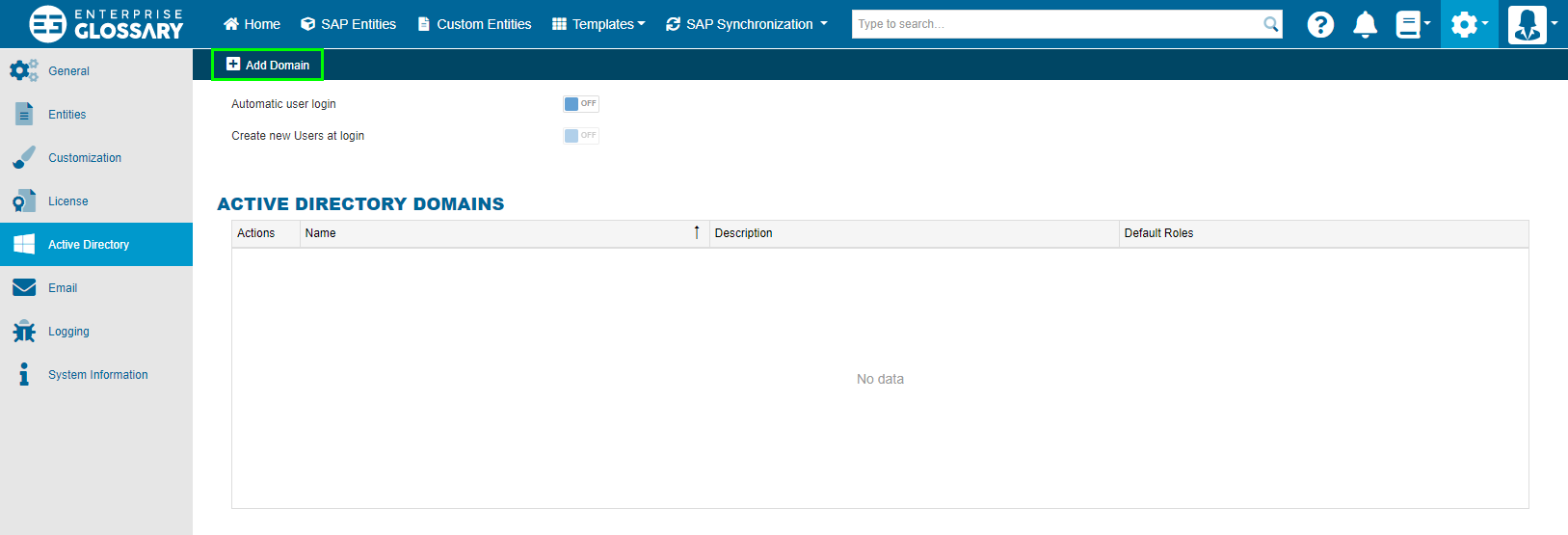
You can maintain multiple Active Directories in the Enterprise Glossary, to do this you must click on Add Domain.
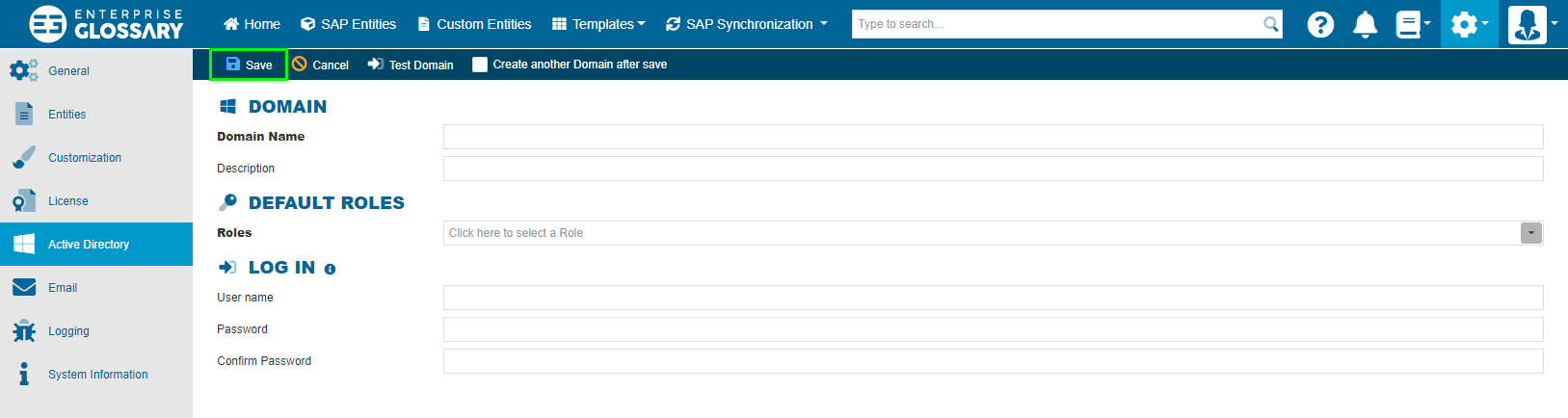
To add a domain, you must enter the name of the domain, select the appropriate roles and click Save. The selected default roles are assigned to users that are automatically created when logging in. If the web server is not located in the created domain, the login data must be entered. Before saving the domain, the User can also use the Test Domain button to test whether a connection to the created domain can be established.

Needed Permissions to read Active Dirtectory
The login that reads user information from Active Directory needs the following permissions:
Read access to user objects and attributes
Read access to the organizationl units(OUs) where the objects reside
We are using Lightweight Directory Access Protocol (LDAP) to perform queries against the AD domain services hierarchy.
The login is either the one that is specified when creating the domain in Enterprise Glossary, or when left blank, the Winodws user of the IIS server like “IIS_IUSRS”.
In order to automatically login and create users, you must check the Automatic User login and Create new Users at login checkbox under Settings -> Active Directory.
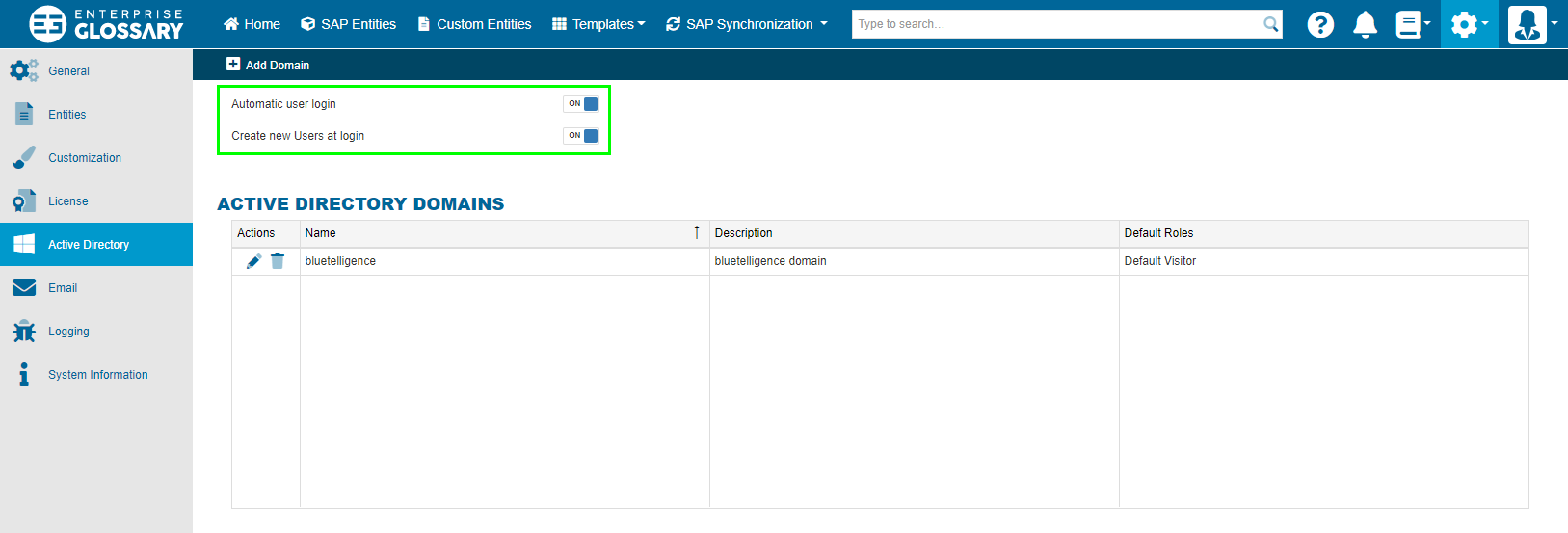
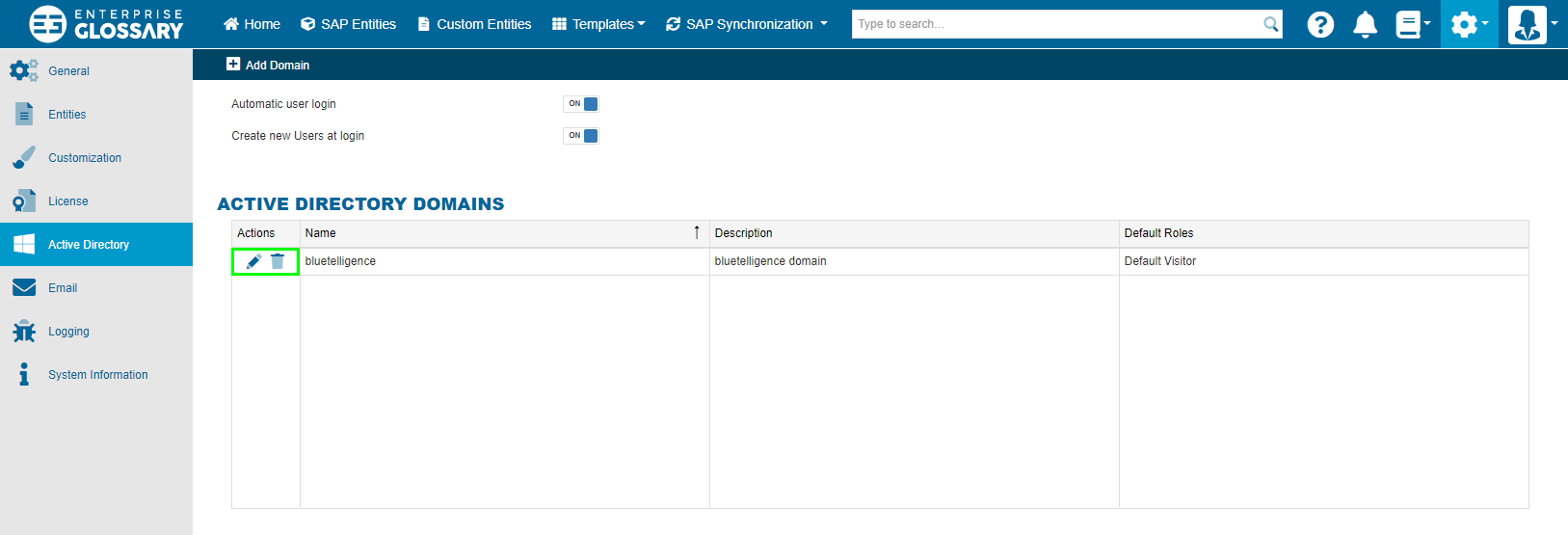
Added domains can be edited or deleted at a later time under Settings -> Active Directory using the respective buttons in the list of our added domains.